How To Make A Sticker On Snapchat | 5 Easy Steps
Snapchat is fun because it lets you personalize your snaps with filters, emojis, and stickers. I recently discovered how to make my own custom stickers, and it completely changed the way I send snaps. Creating stickers allows you to use your own images, cutouts, or drawings to make snaps more unique and entertaining — a perfect example of Creative tools on Snapchat.
In this guide, I’ll share a simple 5-step process to create stickers on Snapchat, so you can start customizing your snaps right away.
Step 1: Take a Snap or Upload a Photo
The first step is to capture a snap or upload an image from your camera roll. I usually take a photo of something fun or interesting that I want to turn into a sticker.
Open Snapchat, tap the camera icon, and either take a new photo or select one from your gallery. This image will be the base of your sticker.
Step 2: Open the Sticker Tool
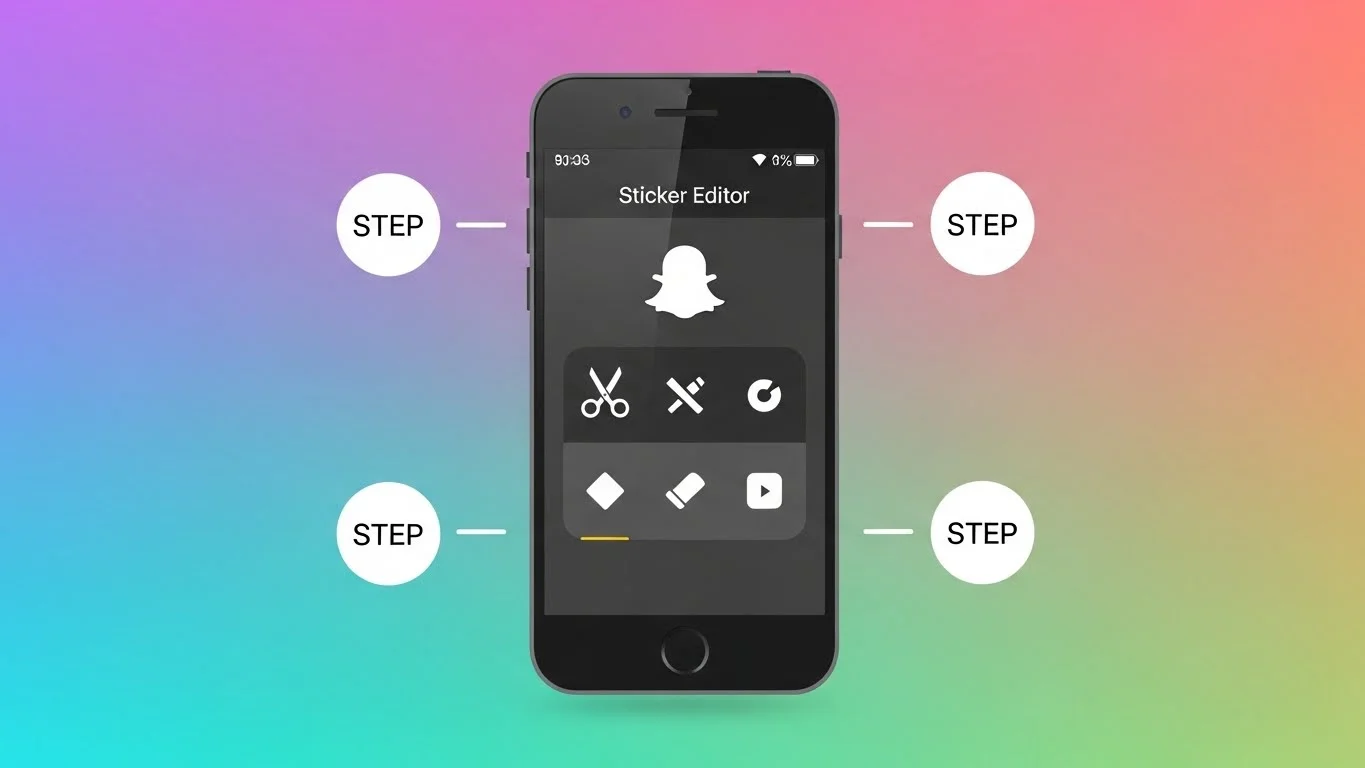
Once your snap is ready, tap the scissors icon on the right-hand toolbar. This opens Snapchat’s sticker creation tool.
From my experience, the tool automatically detects the object in your photo, but you can also manually outline the area you want to turn into a sticker.
Step 3: Crop Your Sticker
Next, use your finger to outline the portion of the snap you want as a sticker. I usually zoom in and carefully trace the object to make the sticker look clean and precise.
After cropping, Snapchat saves your creation as a custom sticker that you can reuse in future snaps. You can create multiple stickers from a single snap if you like.
Step 4: Add Your Sticker to a Snap
Now that your sticker is ready, you can add it to any snap. Tap the sticker icon in the toolbar, and you’ll see your custom sticker under “My Stickers.”
I often resize and rotate the sticker to fit perfectly on my snap. You can place multiple stickers on one snap for added fun and creativity.
Step 5: Save and Reuse Your Sticker
After adding your sticker, send the snap or save it to your camera roll. The sticker is now stored in your My Stickers section and can be reused anytime.
From my experience, creating a library of stickers is a fun way to personalize messages and share them with friends in a unique way. You can even combine them with lenses, filters, and text for a fully customized snap.
Tips for Making Better Snapchat Stickers
- Use clear, high-contrast images to make your stickers stand out.
- Outline objects carefully for cleaner stickers.
- Experiment with different snaps to create a variety of stickers.
- Combine stickers with Snapchat Planets or friend emojis to make interactions more fun.
- Save your favorite stickers for easy access in future snaps.
Common Myths About Snapchat Stickers
Many people think custom stickers disappear after one snap, but that’s not true. Once saved in “My Stickers,” they can be reused indefinitely.
Another myth is that you need third-party apps to make stickers. Snapchat’s built-in tool is fully capable and safe for creating custom content.
Final Thoughts on Making Stickers on Snapchat
Making stickers on Snapchat is simple, creative, and fun. From my experience, following these 5 steps allows you to turn any photo into a reusable sticker that makes your snaps more personal and entertaining.
Whether you want to enhance your messages or create unique visuals, custom stickers are a great way to express yourself on Snapchat. Once you start making them, you’ll wonder how you ever sent snaps without them.