How To Allow Camera Access On Snapchat
When I first installed Snapchat, I couldn’t figure out why the camera wasn’t working. I kept opening the app, but it only showed a black screen or an error message. That’s when I realized Snapchat didn’t have permission to access my camera — something that can be fixed easily through Snapchat app settings.
Allowing camera access is essential for using Snapchat because the app revolves around taking photos and videos. Understanding features like Snapchat Planets can also enhance your experience once the camera is working properly. In this guide, I’ll explain how to enable camera access on both iOS and Android so you can snap, record, and share effortlessly.
Why Snapchat Needs Camera Access
Snapchat is designed around capturing moments. Without camera access, you can’t take snaps, record videos, or use lenses. Even features like augmented reality filters, Bitmoji, and AR games rely on the camera.
From my experience, granting access is the first step to fully enjoying Snapchat. Without it, the app is almost useless.
How To Allow Camera Access on iPhone (iOS)
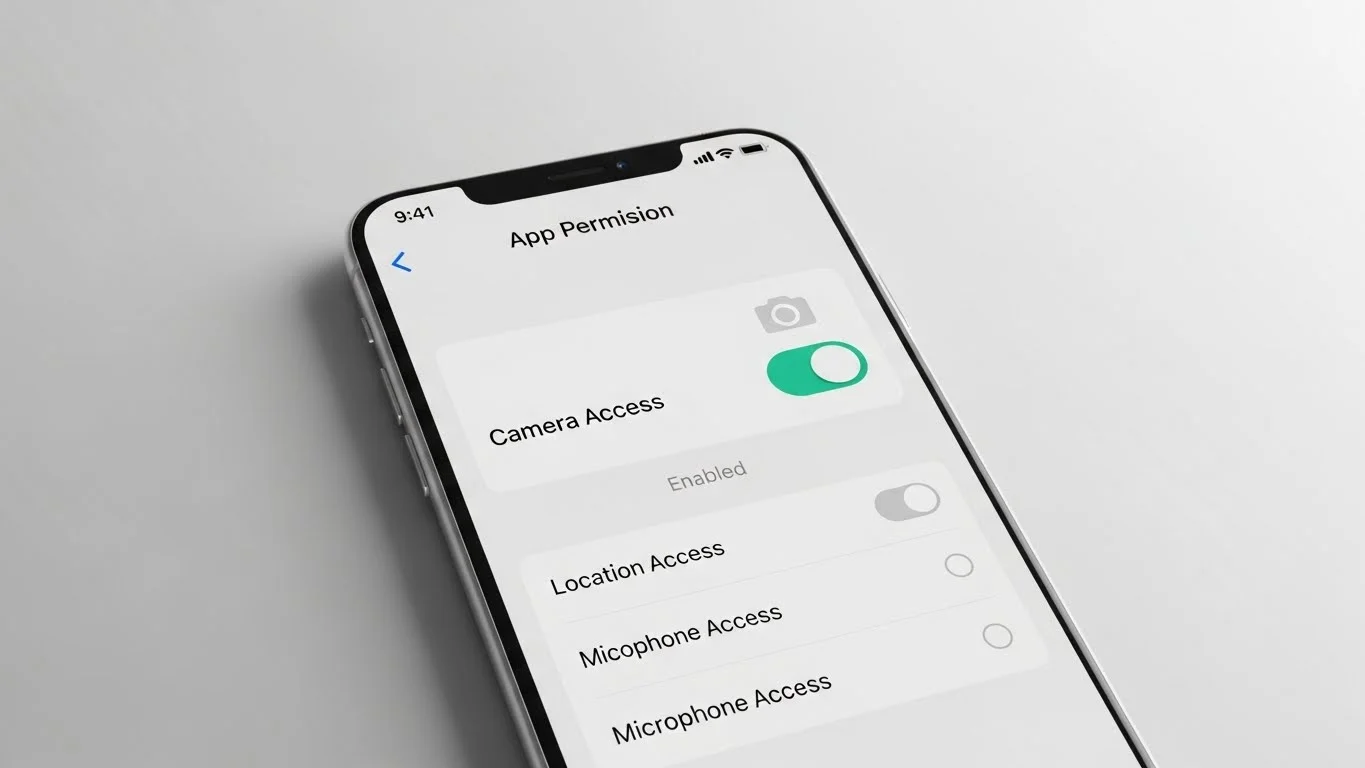
Here’s the step-by-step process I follow to enable camera access on iPhone:
- Open Settings on your iPhone.
- Scroll down and tap Snapchat.
- Toggle Camera to the ON position.
Once enabled, Snapchat can access your camera anytime you open the app. I always double-check this setting if the camera stops working after an iOS update.
How To Allow Camera Access on Android
For Android devices, the steps are slightly different:
- Open Settings on your phone.
- Go to Apps or App Management.
- Find and tap Snapchat.
- Tap Permissions and select Camera.
- Choose Allow.
After granting access, Snapchat should work normally. On Android, I sometimes need to restart the app for changes to take effect.
Troubleshooting Camera Issues on Snapchat
Sometimes, enabling camera access isn’t enough. I’ve run into a few issues and solved them with these tips:
- Restart Snapchat: Close the app completely and reopen it.
- Restart your phone: A quick reboot often fixes camera glitches.
- Check for updates: Make sure both Snapchat and your device OS are updated.
- Clear app cache: On Android, clearing the cache can resolve persistent problems.
These fixes have saved me many times when the camera refused to work.
Allowing Camera Access Without Privacy Concerns
I was initially worried about privacy when granting Snapchat camera access. Snapchat only uses the camera when the app is open, and the permissions can be revoked anytime.
I recommend reviewing app permissions periodically to stay in control. This way, you get full functionality without compromising your privacy.
Using Camera-Dependent Features on Snapchat
Once camera access is enabled, all features work perfectly. I can use lenses, Bitmoji filters, AR effects, and record snaps or stories. Even scanning Snapcodes or using Snapchat’s augmented reality features requires the camera.
Allowing access enhances the experience, making Snapchat much more fun and interactive.
Common Myths About Camera Access on Snapchat
Some people think granting camera access means Snapchat can spy on you all the time. That’s false. The app can only use the camera when open. I’ve also noticed that disabling it completely blocks all camera-based features but doesn’t affect notifications or chat functionality.
Another myth is that Snapchat needs constant access for filters to work in the background. This isn’t true; background access isn’t required for normal usage.
Final Thoughts on Allowing Camera Access on Snapchat
Enabling camera access is essential for enjoying Snapchat to the fullest. From my experience, once the camera is allowed, all features—from snaps to AR filters—work seamlessly.
Whether you’re on iOS or Android, following the steps above ensures your Snapchat experience is smooth and frustration-free. Checking permissions periodically also helps avoid issues in the future.