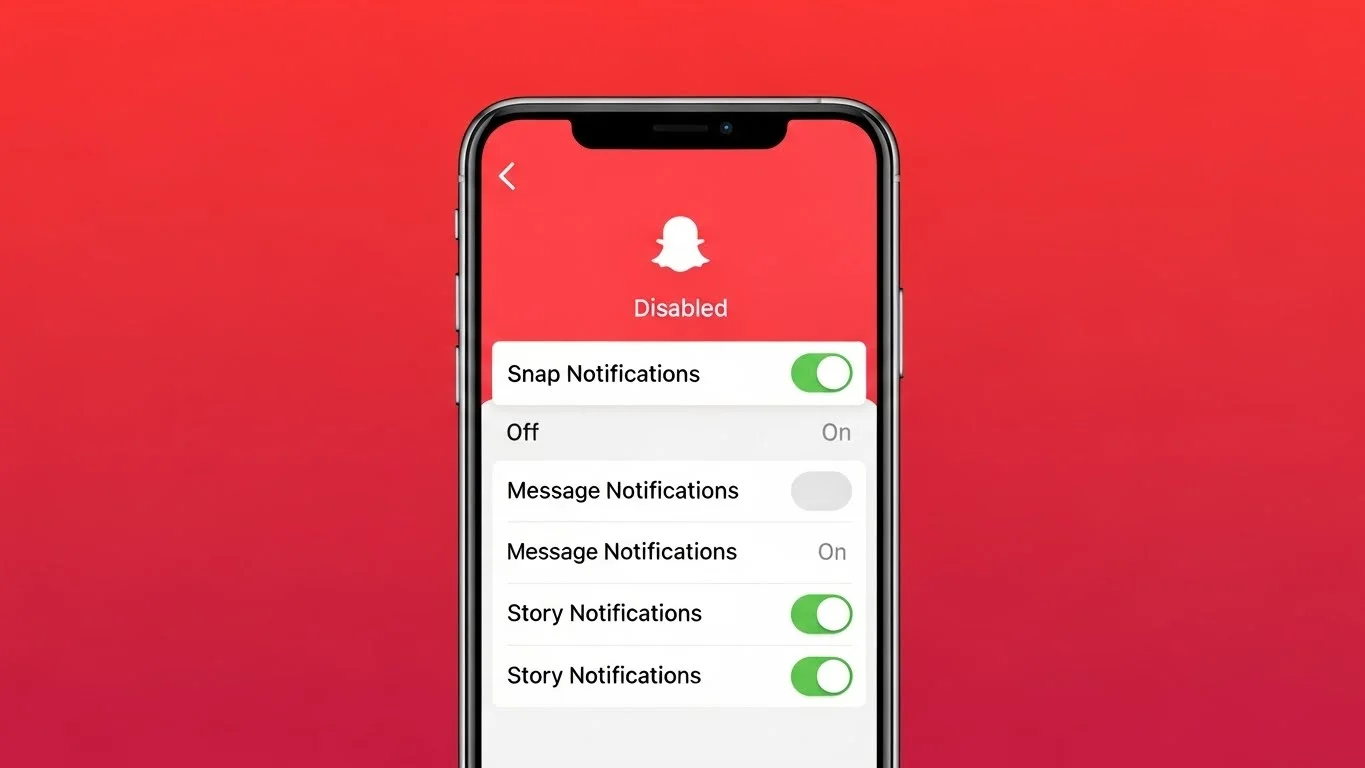
How To Turn Off Snapchat Story Notifications | Best Guide
Snapchat notifications can be fun, but they can also be overwhelming. I used to get constant alerts whenever friends posted stories, and it started to feel distracting. That’s when I learned how to turn off Snapchat story notifications, and it made my experience much more enjoyable by using Snapchat notification controls.
In this guide, I’ll explain step by step how to manage your story notifications so you can enjoy Snapchat on your terms.
Why Turn Off Snapchat Story Notifications
There are many reasons to turn off story notifications. Personally, I found them distracting when I was busy or trying to focus. Constant pings interrupted my workflow, and sometimes I just wanted to browse Snapchat at my own pace.
Turning off notifications doesn’t block friends or stories. You can still view content whenever you want without being constantly notified.
How To Turn Off Notifications For All Snapchat Stories
If you want to stop receiving story notifications for all friends, follow these steps.
- Open Snapchat and tap your Profile in the top-left corner.
- Tap the Settings icon in the top-right corner.
- Scroll down and select Notifications.
- Tap Story Notifications.
- Toggle off the option to receive notifications for all stories.
This stops all story alerts while still allowing you to view stories manually. I found this method perfect for focusing on other tasks without missing Snapchat content entirely.
How To Turn Off Notifications For Specific Friends
Sometimes you don’t want to turn off all notifications, just a few friends who post frequently. Here’s how I do it:
- Go to the friend’s profile.
- Tap the three dots in the top-right corner.
- Select Manage Friendship.
- Tap Story Notifications and toggle them off.
This way, I only get alerts for friends I care about, while avoiding constant notifications from everyone else.
Using Do Not Disturb Mode for Snapchat
Another method I use is Snapchat’s Do Not Disturb feature. This is useful when I want temporary relief from notifications without changing my settings permanently.
- Open the friend’s profile.
- Tap the three dots menu.
- Select Do Not Disturb and choose a time duration.
This mutes notifications for a set period while still allowing me to check stories manually.
Benefits of Turning Off Story Notifications
Turning off notifications has several benefits. First, it reduces distractions and allows me to focus on other activities. Second, it prevents phone overload from constant pings. Third, I can browse Snapchat at my own pace without feeling pressured to view every story immediately.
From my experience, this small change makes using Snapchat far more enjoyable.
Common Myths About Snapchat Notifications
Many people think turning off story notifications will hide their own stories or prevent friends from seeing them. This is not true. Your stories remain visible to friends, and you can still engage with them normally.
Another myth is that notifications cannot be turned off for individual friends. In reality, Snapchat allows full customization, so you can control alerts precisely.
Tips For Managing Snapchat Notifications
I’ve learned a few tips for managing notifications effectively:
- Review notification settings periodically. Snapchat updates its features frequently.
- Use Do Not Disturb for temporary breaks.
- Turn off notifications for overly active friends while keeping alerts for close friends.
- Combine notification settings with other Snapchat privacy features like story visibility and friend emojis.
I also check guides like snapchat planets to understand how my interactions influence alerts and friend activity.
Final Thoughts on Turning Off Snapchat Story Notifications
Turning off Snapchat story notifications is simple but makes a huge difference. From my experience, managing notifications improves focus and allows a more controlled Snapchat experience.
Whether you turn off all notifications, mute specific friends, or use Do Not Disturb mode, these options help you stay in control without missing out on the content that matters.