How To Delete Snapchat Account | 7 Easy Steps
At one point, I decided to take a break from Snapchat and eventually thought about deleting my account completely. I realized many users feel confused about the process because Snapchat doesn’t make the delete option very obvious — which is why Snapchat account help becomes so important.
In this guide, I’ll walk you through how to delete your Snapchat account in 7 easy steps, based on my own experience. I’ll also explain what happens after deletion and clear up common doubts so you don’t make mistakes.
Things to Know Before Deleting Snapchat
Before deleting my account, I made sure I understood a few important points. Snapchat doesn’t delete your account instantly.
When you request deletion, your account is deactivated for 30 days. During this time, you can still recover it if you change your mind. After 30 days, the account is permanently deleted.
Step 1: Open Snapchat Account Portal
Snapchat doesn’t allow account deletion directly inside the app. I had to use a browser instead.
I opened my browser and went to Snapchat’s official account management page. This is the only place where deletion works properly.
Step 2: Log In to Your Snapchat Account
Next, I logged in using my Snapchat username and password.
Make sure you remember your login details. If you don’t, you’ll need to reset your password before continuing.
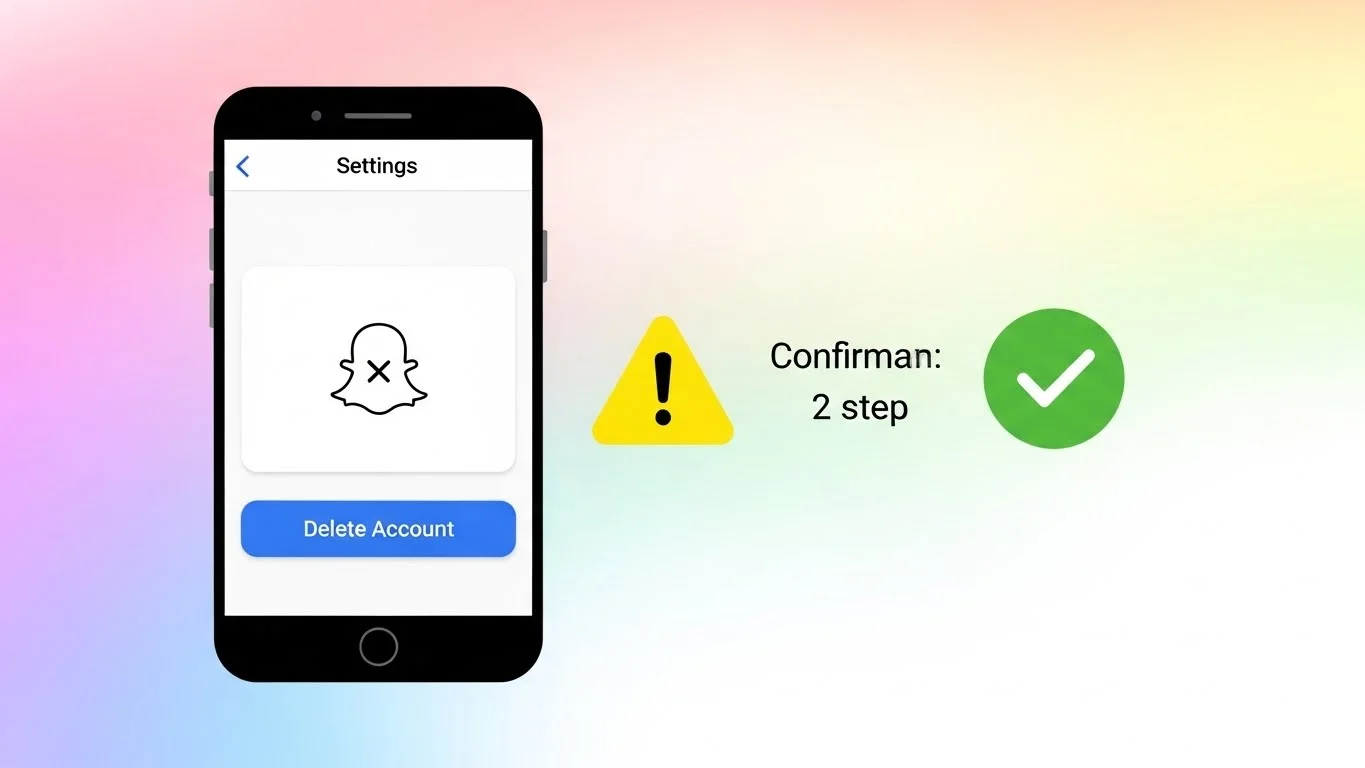
Step 3: Select “Delete My Account”
After logging in, I scrolled down and found the option that says “Delete My Account.”
Snapchat doesn’t hide it completely, but it’s not highlighted either. You have to look carefully.
Step 4: Re-Enter Your Password
Snapchat asked me to enter my password again to confirm my identity.
This step is important because it prevents someone else from deleting your account without permission.
Step 5: Confirm Account Deletion
Once I re-entered my password, I clicked the confirmation button.
At this point, Snapchat officially deactivated my account. I received a confirmation message that the process had started.
Step 6: Stay Logged Out for 30 Days
This step is very important. After requesting deletion, do not log back into your account for 30 days.
If you log in during this period, Snapchat automatically cancels the deletion and reactivates your account. I made sure to stay logged out completely.
Step 7: Account Permanently Deleted
After 30 days of inactivity, Snapchat permanently deletes your account.
Your friends can no longer find you, your snaps disappear, and features like Snapstreaks, Memories, and even Snapchat Planets stop existing for that account.
How to Delete Snapchat Account on Android and iPhone
The steps are exactly the same for both Android and iPhone. I tried checking inside the app, but Snapchat always redirects you to the browser.
So no matter which device you use, you’ll always need a web browser to delete your account.
What Happens After You Delete Snapchat?
After deletion, several things happen that you should be aware of.
Your username becomes unavailable for future use.
Your chat history is removed from Snapchat servers.
Your Snapstreaks end permanently.
Your Best Friends list and Snapchat Planets disappear.
From my experience, this makes the deletion feel final, so think carefully before proceeding.
Can You Recover a Deleted Snapchat Account?
Yes, but only during the 30-day deactivation period.
If you change your mind, simply log back into Snapchat using your username and password. Snapchat will reactivate your account instantly.
Once the 30 days are over, recovery is no longer possible.
Difference Between Deactivating and Deleting Snapchat
Snapchat doesn’t offer a separate “deactivate” option.
When you request deletion, your account is temporarily deactivated for 30 days. If you don’t log in during this time, it becomes permanently deleted automatically.
Common Mistakes People Make
When I researched this, I noticed some common mistakes users make.
Many people think uninstalling the app deletes the account. It doesn’t.
Some users log back in accidentally during the 30 days.
Others forget their password and can’t complete deletion.
Avoiding these mistakes makes the process smooth.
Is Deleting Snapchat the Right Choice?
For me, deleting Snapchat was about reducing distractions. For others, it might be privacy concerns or just taking a break.
If you’re unsure, you can uninstall the app first and see how you feel. Permanent deletion should be a well-thought decision.
Alternatives to Deleting Snapchat
If you don’t want to delete your account completely, you can try a few alternatives.
Turn off notifications to reduce usage.
Enable Ghost Mode for privacy.
Remove friends you no longer interact with.
These steps helped me manage Snapchat better before deciding to delete it.
Final Thoughts
Deleting a Snapchat account isn’t difficult once you know where to look. Following these 7 easy steps, I was able to delete my account without confusion or stress.
Just remember the 30-day waiting period and avoid logging back in. Once that time passes, your Snapchat account is gone for good.
If you’re ready to move on from Snapchat, this process makes it simple and straightforward.